
| Module: Admin App |
An opportunity is logged in the system whenever a call with the purpose of New Appointment results in a “Not Booked” outcome. The Opportunities screen in the VoiceStack Agent App is designed to help agents manage and track such opportunity calls and their progression effectively.
It provides a visual and interactive workflow that categorises leads based on their current engagement stage, from initial contact to successful conversion. Agents can view, update, and take action on leads using intuitive swimlanes and real-time filters to streamline outreach and improve conversion rates.
In this Article:
- Accessing the Feature
- Dashboard Overview
- Display Modes
- Use Cases
- Benefits
- Best Practices
- Pro Tips for Agents
Accessing the Feature
- Navigate to the Opportunities tab in the Agent App.
Dashboard Overview
Once accessed, the opportunities dashboard appears with two display modes.
Users can toggle between these two display modes:
1. Board: Visual Kanban board with drag-and-drop functionality.
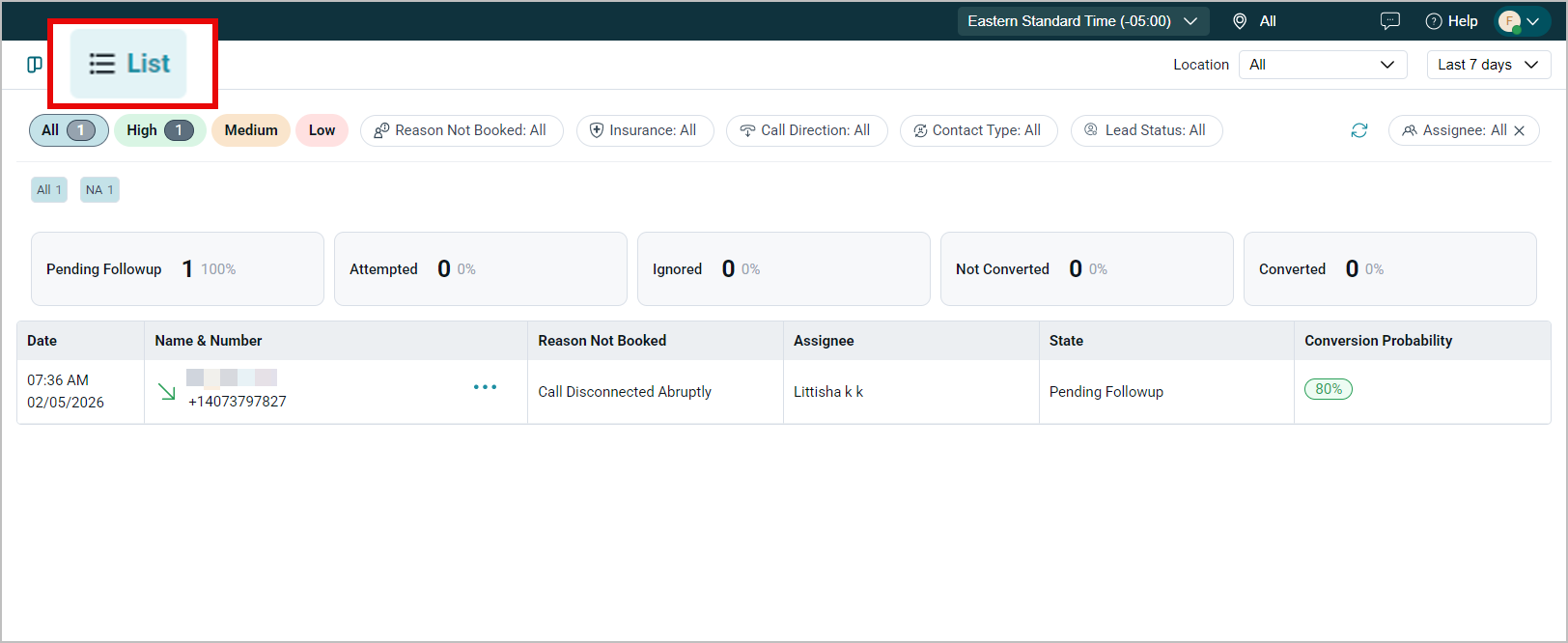
2. List: Tabular view displaying detailed interaction-level data such as date, name, number, reason not booked, assignee, and conversion probability.
Available Filters
All filters are accessible from the control panel at the top of the screen:
Filter / Control |
Description |
|---|---|
| Location | View opportunities for all or a specific practice location. |
| Show Only (Date Range) | Select from predefined ranges such as “Last 7 Days,” “Last 30 Days,” or choose a custom date range. |
| Assignee | Filter opportunities by assigned agent or view all. |
| Reason Not Booked | Narrow results based on why an appointment was not booked. |
| Insurance | Filter by patient insurance type or eligibility status. |
| Call Direction | View inbound calls, outbound calls, or all. |
| Contact Type | Segment opportunities based on New Patient or Existing Patient. |
| Lead Status | Filter based on lead temperature or priority. |
| Search | Search opportunities by patient name or phone number. |
| Priority Tags | Quickly filter by conversion probability — High, Medium, or Low. |
| Treatment Tags | Categorise opportunities based on the treatment type or patient need (e.g., Root Canal, Emergency). Helps agents segment and track opportunities easily. |
Views
Custom Generated View Dropdown
Views refer to saved filter configurations within the board display mode. Saved views will retain certain filter selections and can be accessed anytime without reapplying filters.
- All Opportunities: Predefined by the system and available to all admins and agents. These are default views and cannot be edited or deleted.
- Custom-generated views: These views are created and saved by admins based on preferred filters. Please note, Agents can view these (if shared by the admin) and search from the dropdown list, but they cannot create, edit, or delete them. Each saved view preserves the applied filters for easy access later.
View Sharing & Access Control
- Admins can grant or revoke access to agents for specific views.
- Agents can only see assigned views and the default “All Opportunities” view.
- Access to data within a view still depends on location permissions — restricted cards remain hidden.
Display Modes
1. Board
- The Board View presents opportunity calls as cards organised into columns/buckets representing different stages in the follow-up lifecycle. After each call, this layout allows the agent to move the card to each bucket based on the call status.
- This visual layout is ideal for teams that manage opportunities through progressive workflow stages.
- The board consists of five columns, each representing a distinct opportunity status as follows:
- Pending Follow-up: These opportunities require an action or callback. The highest priority action items as they indicate patients who have expressed interest but have not yet been contacted for follow-up
- Attempted: Opportunities where the agent has initiated follow-up but has not yet connected with the patient.
- Ignored: Opportunities that have received no agent action despite being in the system. A high percentage in this column indicates workflow problems and represents significant lost revenue.
- Not Converted: Opportunities where agent contact occurred, but the patient did not schedule an appointment.
- Converted: These indicate opportunities that were successfully closed, and the patient scheduled an appointment. Highlighted in Green.
Opportunity Card
- Each card represents an opportunity, providing a snapshot of important details. This enables agents to assess and take quick action. On clicking the opportunity card, the patient 360 pops up with call insights, IQ summary, follow-up cues, and the conversion probability.
Card Information Display:
Each opportunity card displays the following information for quick assessment:
- Patient name
- Time Stamp- Relative Time since the last interaction
- Conversion probability: AI-estimated, calculated percentage score
- Reason not booked: Narrow results based on why an appointment was not booked during the initial call.
- Treatment Tags - Visual indicators for procedure type (e.g., Emergency, Check-Up, Root Canal)
- Lead Status- Filter based on lead temperature or priority (Eg, Hot - High engagement, Warm - Moderate engagement, Cold - Low engagement)
- Assigned agent name: Shows the Agent responsible for the opportunity.
Drag-and-Drop Functionality
Cards can be moved between columns to update opportunity status in real-time.
- Simply drag a card from "Pending Follow-up" to "Attempted" when you've left a voicemail or sent follow-up communication.
- You can also click on the ellipsis and move to different buckets.
Card Assignment
By default, when an agent handles a call, the corresponding opportunity card is automatically assigned to them. However, these cards can also be reassigned to another agent if needed.
To Reassign a card:
- Hover over the desired opportunity card.
- Click the three-dot menu (⋮) located between the columns.
- From the dropdown menu, select Reassign.
- In the Assign To panel, search for or select the desired agent from the list.
5. The selected agent’s name will now appear on the card under the “Assigned To” field.
2. List
Provides a detailed table of the opportunities, just like in the board view, but in a tabular form with columns such as:
- Date & Time of Call: Displays the timestamp that is captured during the call.
- Patient Name & Number: Shows patient name and phone number.
- Reason Not Booked: Lists the primary reason why the appointment was not scheduled during the initial call.
- Assignee: Displays the name of the team member responsible for following up on the opportunity. "Unassigned" appears for opportunities that have not yet been distributed to agents.
- State (Pending / Attempted / Converted): Current status of the opportunity in the workflow
-
Conversion Probability (%): AI-calculated likelihood that the opportunity will result in a booked appointment, displayed as a percentage with a colour-coded badge:
- 70-100%: Green (highest priority)
- 50%: Orange (Medium)
- 20%: Red (Low)
Use Cases
Scenario |
Usage |
|---|---|
| Dental clinic marketing campaign | Agents track responses to promotions and move opportunities toward booking. |
| Missed call recovery follow-up | Calls marked for re-engagement are managed until the appointment is converted. |
Benefits
- Real-Time Pipeline Visibility – Easily track the status of every lead.
- Better Conversion Rates – Helps agents focus on warm leads using visual cues.
- Data-Driven Decisions – Use engagement percentages to prioritise effectively.
- Time Efficiency – Filters and drag-and-drop interface save time and reduce admin work.
- Improved Collaboration – Teams can collectively manage and view lead statuses.
Best Practices
- Daily Lead Review: Start the day by reviewing Pending Follow-Up and Attempted swimlanes.
- Update Promptly: Move cards as soon as the lead status changes to keep data fresh.
- Use Notes in Patient 360: Document interaction outcomes or pending next steps.
- Check Conversion Scores: Focus on leads with 60%+ to maximise appointment chances.
- Archive Lost Leads: Clean the board regularly by marking stale leads as Not Converted.
Pro Tips for Agents
- Follow up regularly with leads in the Pending Follow-up column.
- Use conversion probability scores to prioritise.
- Apply filters to take focused actions.
- Ensure movement of cards across stages reflects real-time progress.
Support
Need further help? Contact au.support@voicestack.com or call +61 8 7533 8383.
Comments
0 comments
Please sign in to leave a comment.